Run a drywall
takeoff.
With a set uploaded, a full drywall takeoff is one click away. Here is what the AI reads, and how to read the BOQ it hands back.
Fire the quick action
From the home screen, click Complete drywall takeoff. You can also type the request into the prompt — for example, take off all interior drywall partitions for this floor. Either way Pilars builds an execution plan, scans every page of the set, and gets to work classifying walls against the wall-type legend.
What the AI reads
This is the part that separates an AI takeoff from a tool that just measures lines. Before it counts anything, Pilars pulls three things off the drawings:
- The wall-type legend. Every partition tag on the plan maps to an assembly — stud size, gauge, layers of board, insulation, and rating.
- Gauges and stud sizes. A 25-gauge metal stud and track at 3-5/8 inch is a different line item from a 20-gauge at 6 inch. The model keeps them separate.
- Wall heights. Slab-to-deck versus slab-to-ceiling changes linear feet into square feet. Heights come from the schedule and section callouts.
A fine-tuned vision model then walks the floor plan and highlights every detected wall segment, color-coded by wall type, so the quantities trace back to something you can see.
Review the BOQ
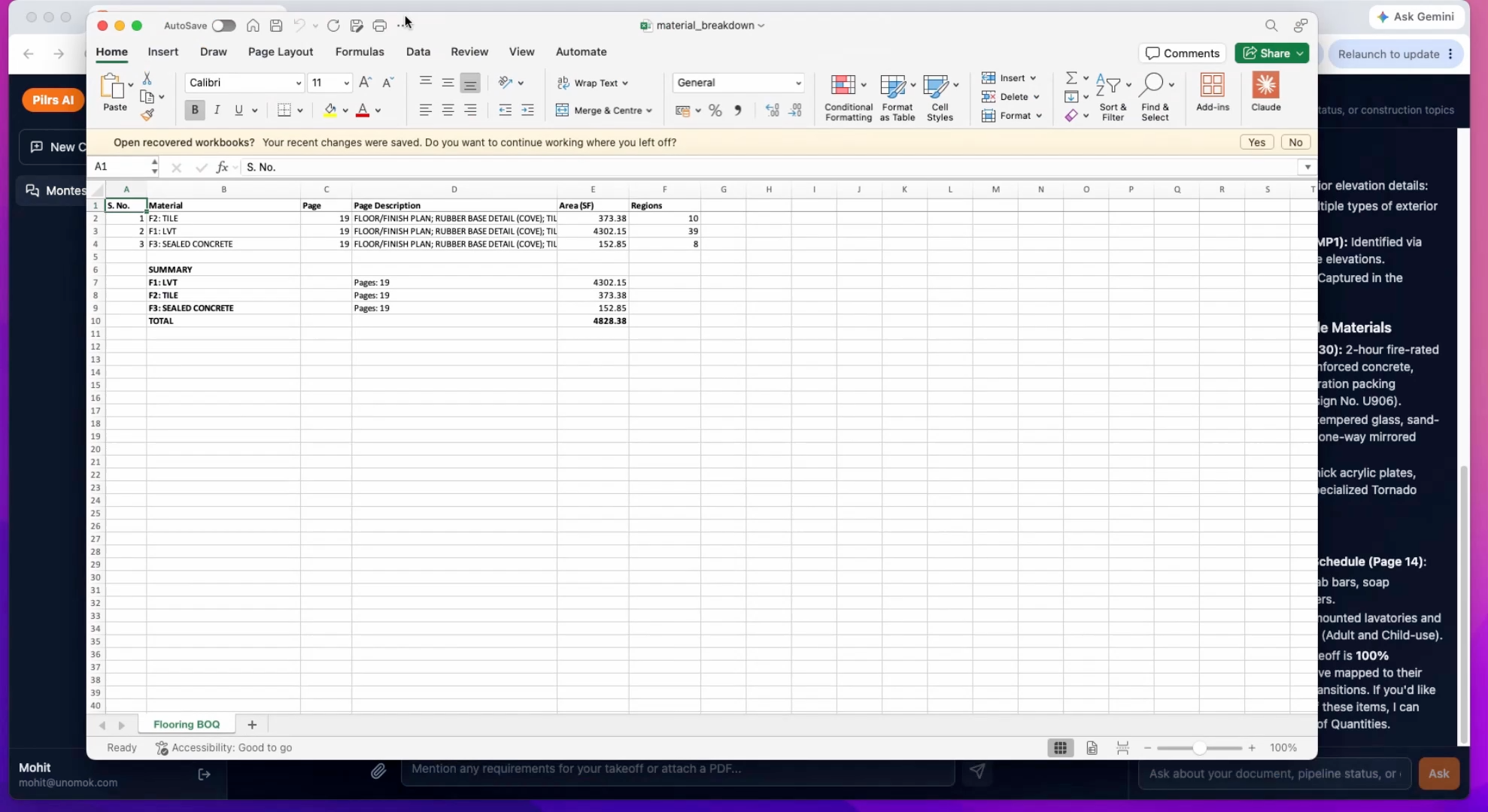
The output is a bill of quantities table — not a pile of raw lengths. Each row is a real material line: 25-gauge metal stud and track by size, gypsum board, insulation, with counts, length in linear feet (LF), and area in square feet (SF).
Step by step
- Click Complete drywall takeoff on the home screen after the set has scanned.
- Watch the execution plan. Pilars lists what it is about to do — read the legend, classify partitions, total quantities — and works through every page.
- Scan the wall overlays. The colored segments on the plan show which walls fed each line. Spot-check that a corridor reads as a rated partition, not a generic one.
- Read the BOQ rows. Confirm the gauges and sizes match the legend, and that LF and SF look right for the floor area.
- Export to Excel when the numbers hold up — covered in its own tutorial.
Pro tips
- If a wall type is missing from the BOQ, check that its tag appears in the legend you uploaded — an untagged assembly is the usual culprit.
- Sanity-check one big room by hand: rough LF times height should land near the SF Pilars reports.
- Run drywall and its rated assemblies together so the code-compliance check has everything it needs later.
- Keep the wall-classification view open beside the BOQ so every quantity has a visual it traces to.
Frequently asked
How does Pilars know which walls are drywall partitions?
It reads the wall-type legend and partition schedule from your uploaded set, then a vision model matches each tagged segment on the plan to its assembly.
What is in the drywall BOQ?
Material rows such as 25-gauge metal stud and track by size, gypsum board and insulation, each with a count, length in linear feet and area in square feet.
Does it handle different stud gauges and heights?
Yes. Pilars keeps each gauge and stud size as its own line and uses wall heights from the schedule to convert linear feet into square feet.
— Keep going