Upload your
first plan set.
Everything good that comes out of an AI takeoff starts with what you put in. Here is how to prep a PDF set, upload it, and read what the scan is doing.
Before you upload
Pilars reads a complete drawing set the way a human estimator does — by flipping through every page and cross-referencing the legend and schedules. So the single biggest thing you control is the file you hand it. A clean, complete PDF gives a clean, complete takeoff. A partial export gives a partial one.
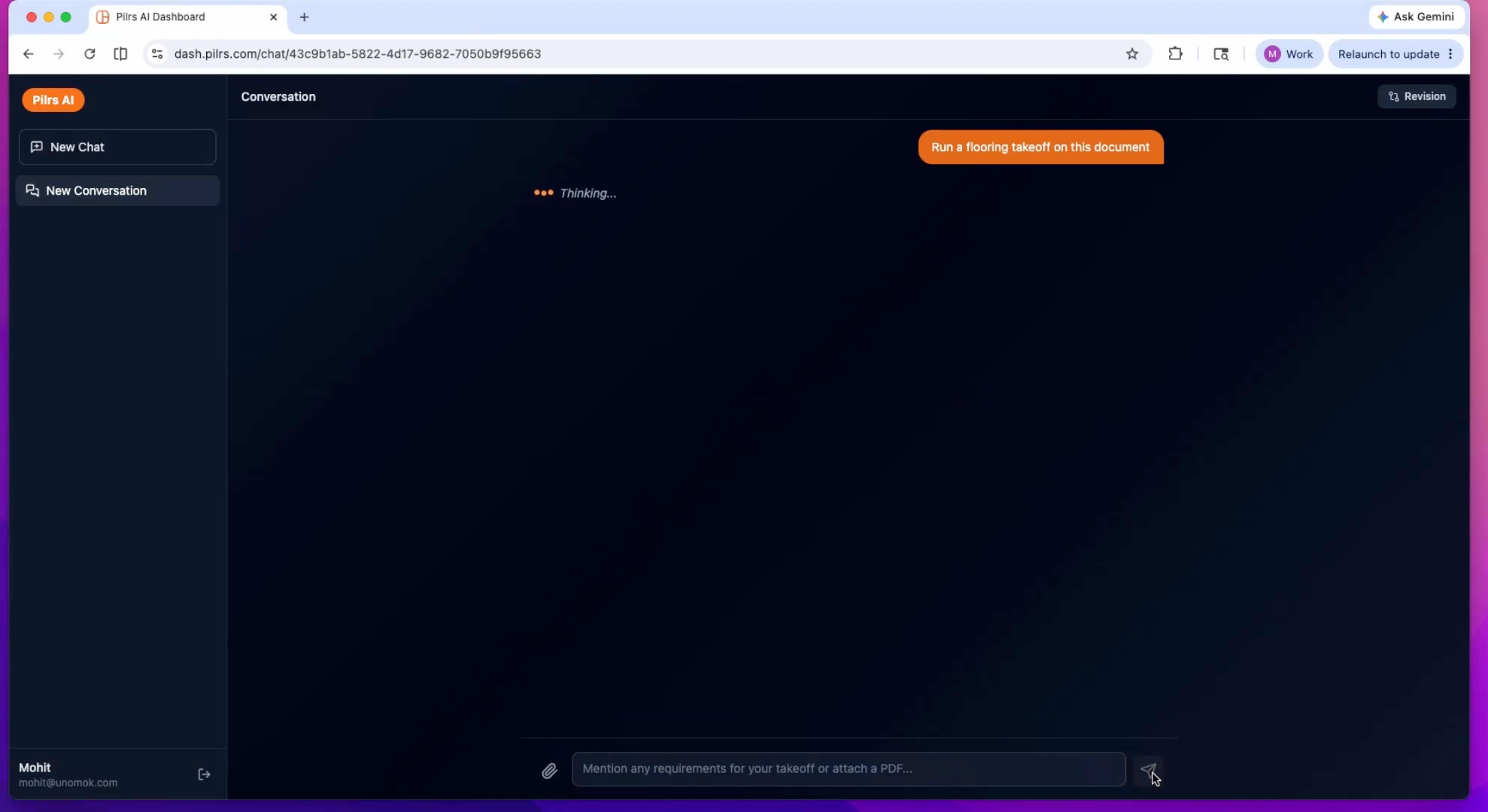
Step by step
- Export the full set as one PDF. Not just the floor plans. Include the cover sheet, the general notes, the wall-type legend, the partition schedule, the door and finish schedules, and any detail sheets. These pages are where scope hides, and the AI uses them to classify what it sees on the plans.
- Check the resolution and orientation. Vector PDFs straight from the architect read best. Scanned sets work too, but make sure pages are upright and legible — if you cannot read a wall tag at 100%, neither can the model.
- Open the demo and drop the file. On the The Pilars dashboard there is an upload area beside the three quick actions. Drag your PDF in, or click to browse. One file for the whole set is ideal.
- Let the scan run page by page. Pilars walks the entire set, recognizing sheet types, pulling the legend and schedules into memory, and building an execution plan for the trade you are about to take off.
- Pick your starting point. Once the scan finishes you can fire a quick action — Complete drywall takeoff, Check code compliance, or Estimate material pricing — or type a plain-English request into the prompt, such as describe what you need: takeoff, pricing, compliance check.
What the scan actually does
The scan is not OCR on a single page. Pilars ingests the whole set, identifies which sheets are plans versus schedules versus details, and ties them together. When it later classifies a wall on sheet A-201, it already knows what the wall-type legend on the general sheet says that tag means. That is why including the legend and schedule sheets matters so much: leave them out and the model has to guess at tags it could have simply looked up.
Because the model reads every page, large sets take a little longer than a single sheet — that is the work being done, not a delay. When it is finished, you have a project the AI understands well enough to take off, price, or check against code.
Pro tips
- Always include the wall-type legend and partition schedule. They are the AI's dictionary for everything it detects on the plans.
- Send the architectural set for drywall and the trade set for MEP work — match the drawings to the trade you intend to bid.
- If a set arrived as a dozen separate PDFs, merge them into one before uploading so the cross-references stay intact.
- Name the file with the project and the revision date. It makes the next tutorial — handling revisions — far easier.
Frequently asked
Do I need to upload the whole set, or just the floor plans?
Upload the whole set. The legend, partition schedule, and notes are where the AI learns what each wall tag means, so leaving them out reduces accuracy.
Does Pilars work with scanned PDFs?
Yes, as long as pages are upright and legible at full size. Vector PDFs from the architect read most reliably, but clear scans work fine.
What happens right after I upload?
Pilars scans the set page by page, identifies sheet types, pulls the legend and schedules into memory, and builds an execution plan so you can run a takeoff, pricing, or a code check.